How to add ingredients and nutrition to your menu?
"How to input menu description under each option in Google Form"- Google Docs Editors Community
This is a common question from people selling food on Google Forms. If you sell bento lunch sets with one choice for each set, customers keep asking what's in each one, and some need to check for allergies before they order. A choice in Google Forms has no description under it, so you cram it into the name or answer in chat.
In this article, we will show you how to give each bento a description of what's in it, so that customers read it before they order.
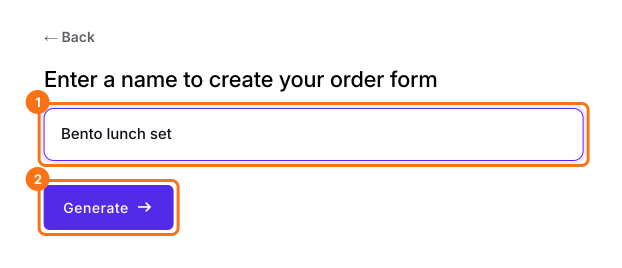
1. Name your order form
Click Create a new form, type your form's name and click Generate. Check the outline it suggests and click Proceed. Already have a Google Form? Click Import Google Form instead.
2. Write what's in the bento
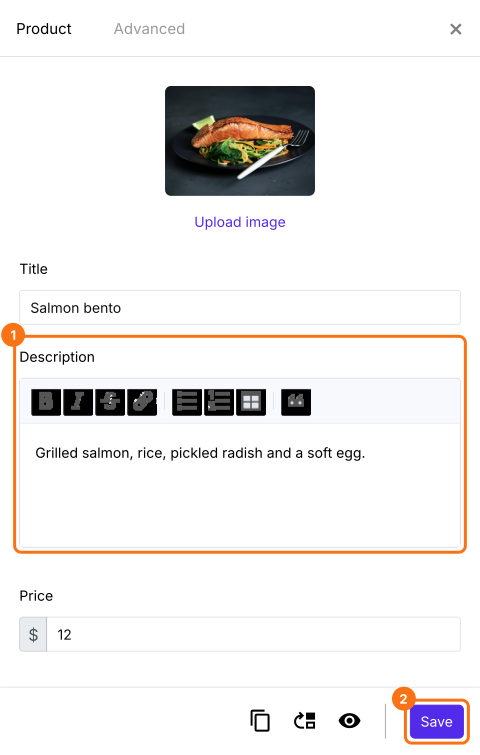
In the EDIT tab, click the bento, then click the gear at the bottom of its card. Click Description, list what's in it and click Save.
3. Add ingredients, allergens and nutrition
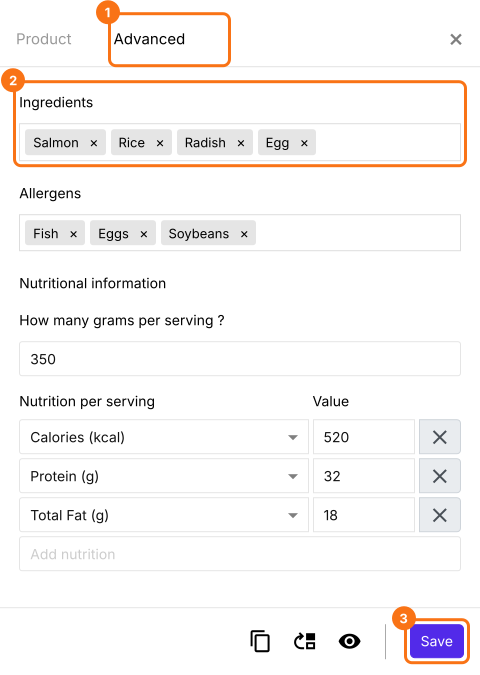
A form made from a food template, such as the Meal prep order form, has more boxes on the Advanced tab. Click Ingredients, Allergens or Nutritional Information, fill them in and click Save.
4. Customers read it before they order
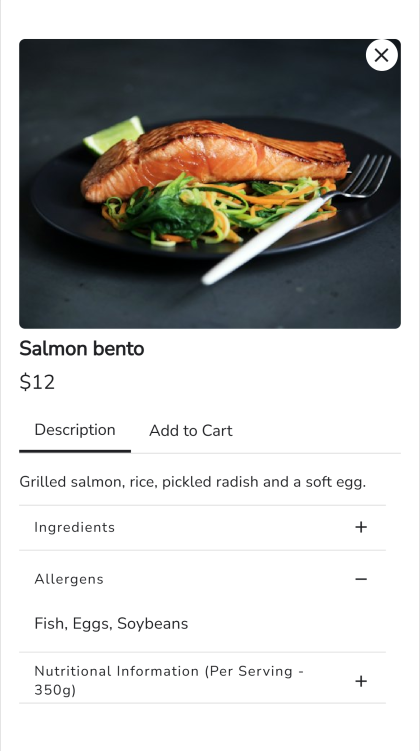
On your form, customers tap the bento and read its Description. They open a row for the details, then order from Add to Cart.
Summary
If customers keep asking what's in each bento, a Google Forms choice has no place to say so, and you end up answering in chat. With Neartail, each product has its own description, and food templates add ingredients, allergens and nutrition, so customers can check before they order.
Last updated: