How to print each order for packing?
"this will have blank spaces in every response from the user"- Google Docs Editors Community
This is a common problem with long order forms. If you take restaurant orders in a Google Form with a lot of products on it, nobody orders everything, so each row in your Sheet is mostly blank cells, and staff have to read across to find what this person wants. Joining those cells into one takes a formula, and one misread row means the wrong bag goes out.
In this article, we will show you how to print each order on its own page, with only what this person ordered and where it goes.
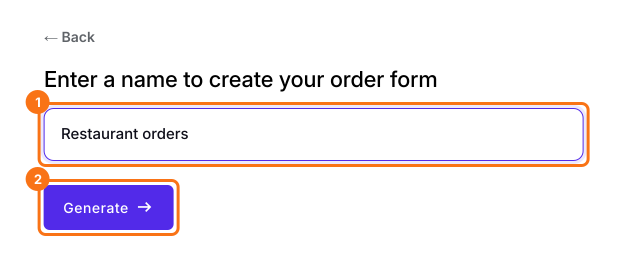
1. Name your order form
Click Create a new form, type your form's name and click Generate. Check the outline it suggests and click Proceed. Already have a Google Form? Click Import Google Form instead.
2. Open the order
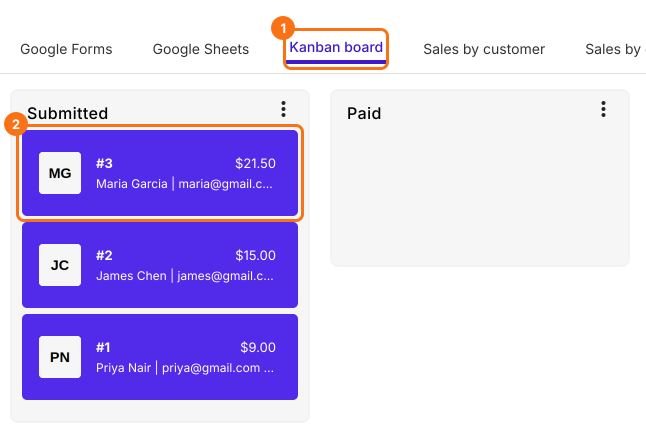
When orders come in, click ORDERS, then Kanban board. Under Submitted, click the order you're packing.
3. Click Print
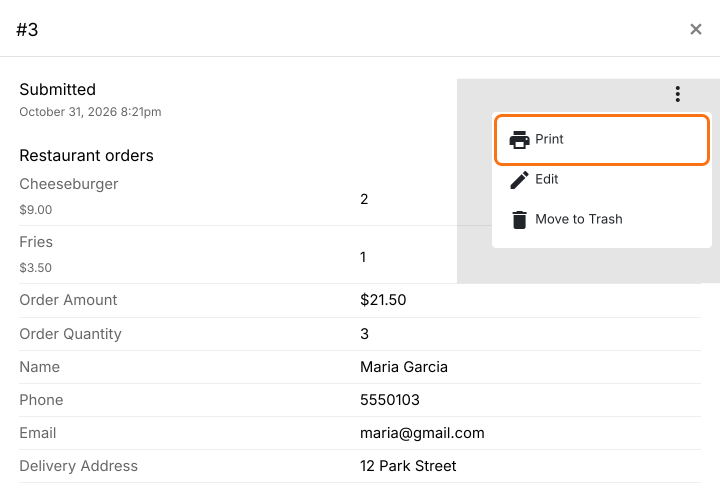
Click the ⋮ at the top of the order and choose Print.
4. Pack from a page with no blanks
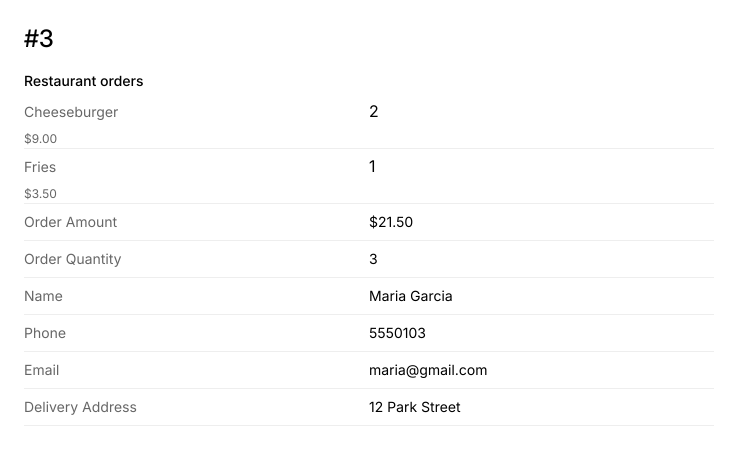
The page has the order number, only what this person ordered, the total, and their name and address. Pack from it, then put it on the bag.
5. Print a whole column on a busy night
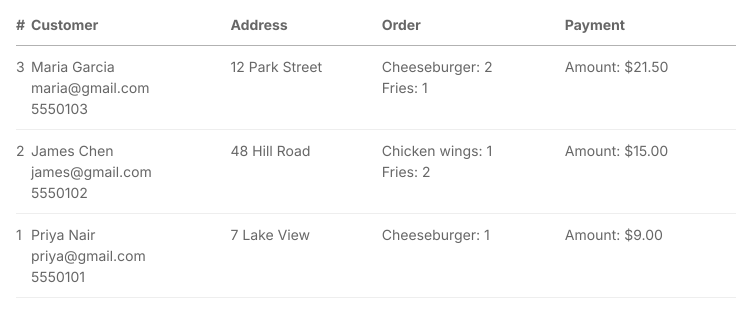
Click the ⋮ on the Submitted column and choose Print, then choose how many orders and click Print. You get one table with a row for each order.
Summary
If most cells in your order Sheet are blank, staff have to read across every row, and one misread means the wrong bag goes out. With Neartail, you print each order on its own page, with only what this person ordered and where it goes.
Last updated: