How to make a delivery list from your orders?
"Need to create individual customer lists of vegetable name, quantity, and price."- Google Docs Editors Community
This is a common job for anyone who delivers orders. If you sell vegetables and customers sign up by quantity on a shared spreadsheet, you need a list for each customer before delivery day, with each vegetable's name, quantity and price. So you read across the sheet and copy each person's row by hand, and one miss means a wrong box at someone's door.
In this article, we will show you how to take orders on a form, so that your Sheet lists each customer's vegetables, quantities and prices for you.
1. Name your order form
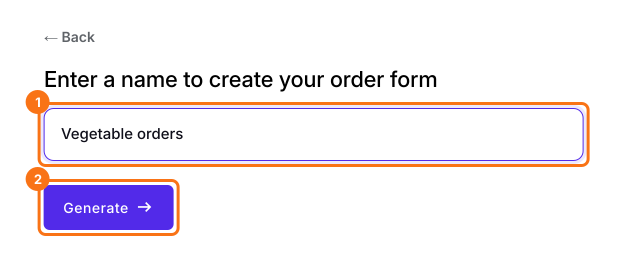
Click Create a new form, type your form's name and click Generate. Check the outline it suggests and click Proceed. Already have a Google Form? Click Import Google Form instead.
2. Send the form in place of the spreadsheet
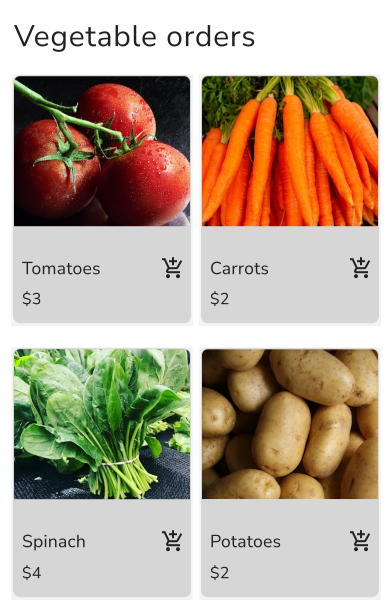
In your form, click SHARE, click Copy and send the link to your customers. They pick their vegetables and quantities, and type their address.
3. Link your orders to a Sheet
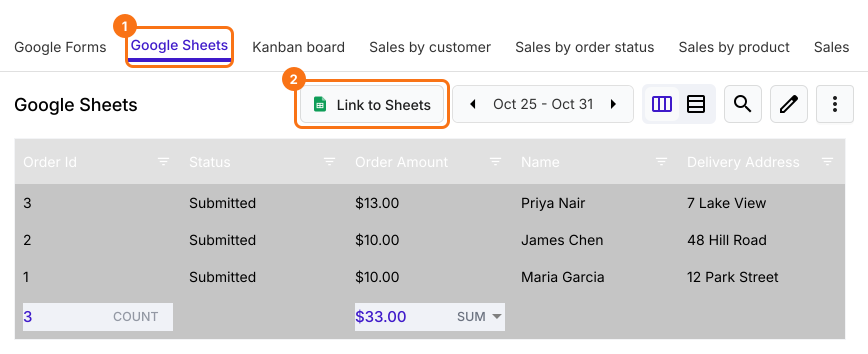
Click ORDERS, Google Sheets, then Link to Sheets and Proceed. When your sheet is ready, click View sheets. New orders are added to the same Sheet.
4. Get each customer's list
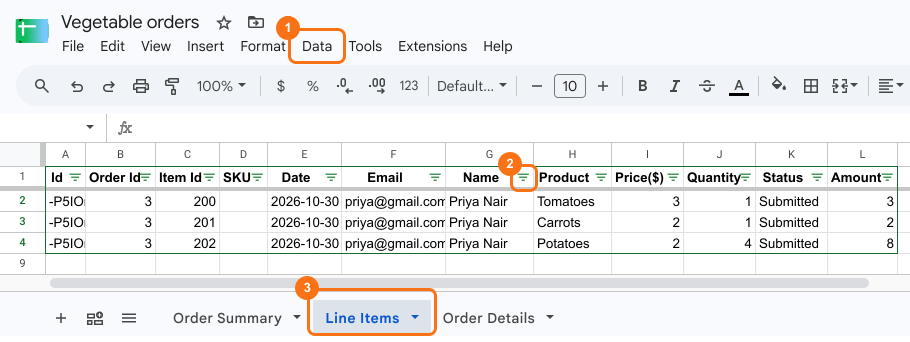
On the Line Items tab, click Data, then Create a filter, and pick a customer under Name. You see each vegetable they ordered, with its price and quantity.
5. Share the delivery list with your driver
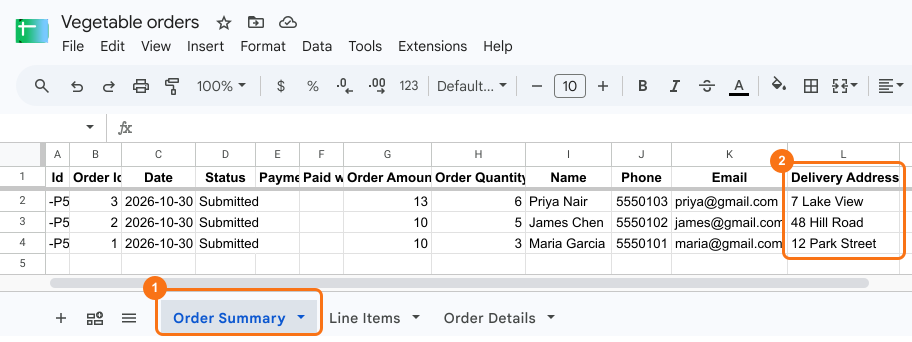
The Order Summary tab has one row for each order, with the name, phone and delivery address. Click Share and add your driver's email.
Summary
If you copy each customer's row by hand before delivery day, one miss means a wrong box at someone's door. With Neartail, customers order on a form, and your linked Google Sheet lists each customer's vegetables, quantities and prices, ready to share with your driver.
Last updated: