How to set fields as protected health information?
Clinics, therapists and other healthcare teams collect patient details in Google Forms, and some answers, such as a name or a date of birth, need more care than the rest. Google Forms treats every answer the same, so there is no way to say which fields hold protected health information. With Formfacade, you tick Mark this as Protected Health Information on each field that holds it. Patients fill in the same form, and you decide which of their answers are PHI.
Let's start. Import your Google Form and follow the steps below.
How to mark fields as protected health information in Google Forms?
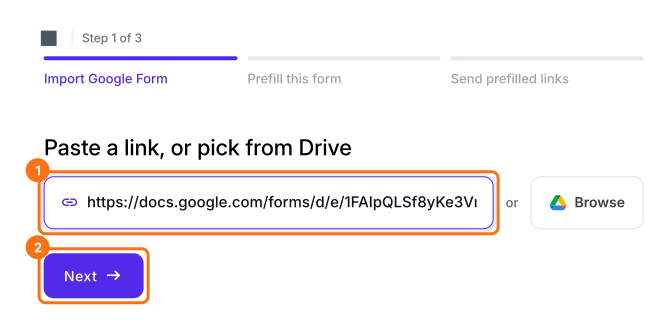
- On the page that opens, paste your Google Form's link or click Browse to pick it, then click Next.
- Under "Who are the prefilled links for?", click Proceed. Your form opens in a new browser tab, on its Contacts page. Click the Edit tab.
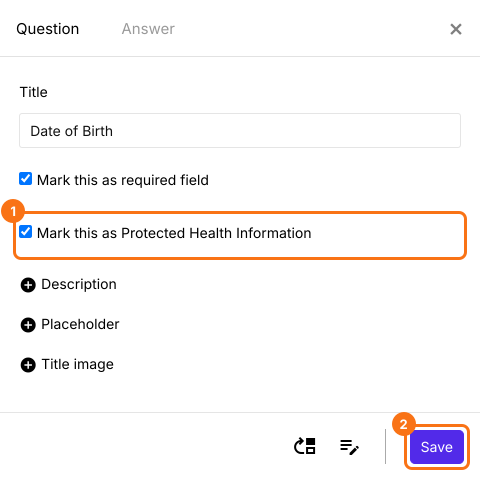
- On the Edit tab, click the field, then the gear icon. The Question tab is open.
- Tick Mark this as Protected Health Information
- Click Save
Summary
Google Forms has no way to mark which answers are protected health information. With Formfacade, you tick Mark this as Protected Health Information in the Question tab of each field that holds it. Import your Google Form and complete the steps above.
Mark fields in your Google Form as protected health information.
Import your patient form and tick Mark this as Protected Health Information on each field that holds it. Patients fill in the same form.