How to count how many of each product was ordered?
"how many of each item the group chose"- Google Docs Editors Community
This is a common question, and 72 people on Google's forum have asked it. If you're collecting a lunch order for a group in Google Forms, you need a count of each item before you call the caterer. The summary tab gives you a chart for every question, and a Sheet needs a formula you have to write and fix. One slip and someone goes without lunch.
In this article, we will show you how to open one report that adds up everyone's orders and shows how many of each item the group chose.
1. Name your order form
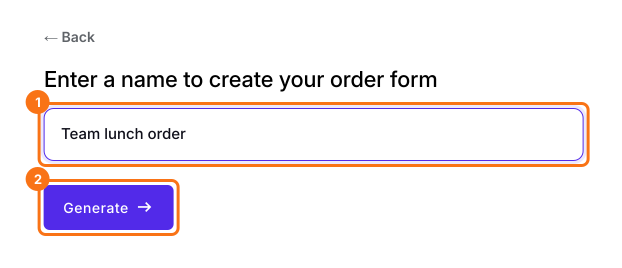
Click Create a new form, type your form's name and click Generate. Check the outline it suggests and click Proceed. Already have a Google Form? Click Import Google Form instead.
2. Send the link to your group
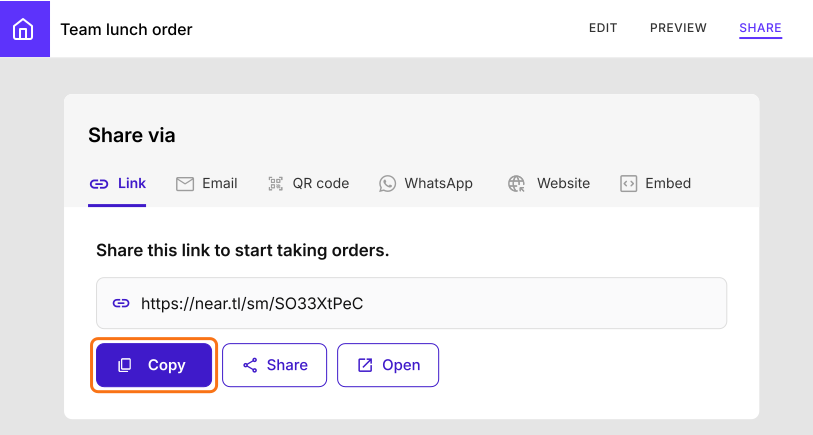
In your form, click SHARE, click Copy and send the link to your group. Each person opens it and orders what they want.
3. Open Sales by product
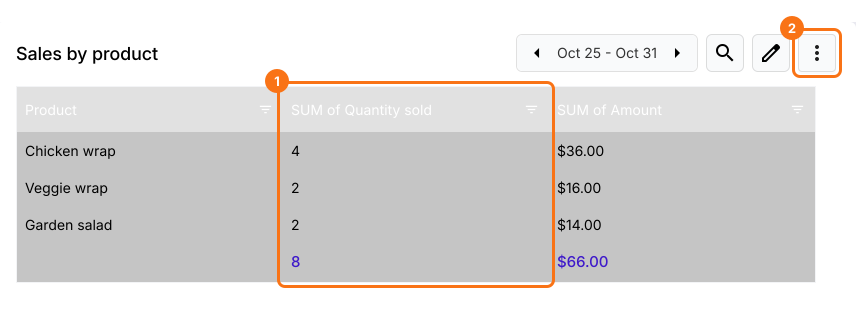
When the group has ordered, click ORDERS, then Sales by product. Check that the dates at the top cover this order, and use the arrows if they don't.

4. Read how many the group chose
SUM of Quantity sold is your count. To send it to your caterer, click the ⋮ and choose Download as PDF.
Summary
If you need a count of each item before you call the caterer, Google's summary charts and a Sheet formula both leave room for mistakes. With Neartail, Sales by product adds up everyone's orders and shows how many of each item the group chose.
Last updated: