How to automatically calculate the amount based on the answer in the payment form?
"I would like to make a Google form for people to choose different items"- Google Docs Editors Community
Workshops, classes and tickets often cost different amounts, and people want to see what they'll pay before they submit. Google Forms lets you type a price beside each answer, but it can't add the prices up or ask anyone to pay. So you work out each amount afterwards and write to each person. With Neartail, each answer carries its price, the form shows the amount as people choose and they pay that amount when they submit. The responses still go to your Google Forms, so you can sync them to Google Sheets and see who picked what.
Let's start. Create your form and follow the steps below.
Set up payments
- On the page that opens, click Enter your form name, type a name and click Generate.
- Check the outline it suggests and click Proceed. Your form opens on the Edit tab.

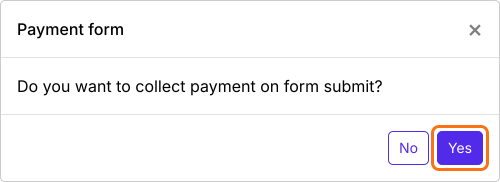
- When it asks "Do you want to collect payment on form submit?", click Yes.
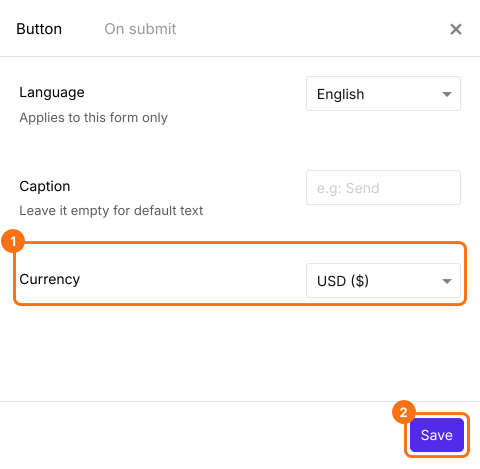
- If PayPal isn't under Manual payments, your form is in a currency PayPal doesn't take. Close the Payments panel, click the gear icon in the After payment row, the last row above the Submit button, select the currency you charge in and click Save. Then click Edit in the Payments row.
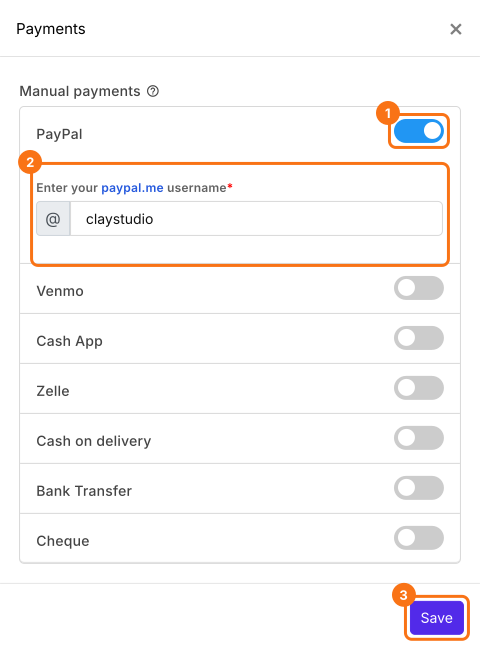
- Under Manual payments, turn on PayPal, enter your paypal.me username and click Save.
Put a price on each answer
Each answer becomes a variant of one product, with its own price.
- Delete the product cards you don't need with the delete icon at the bottom of each card.
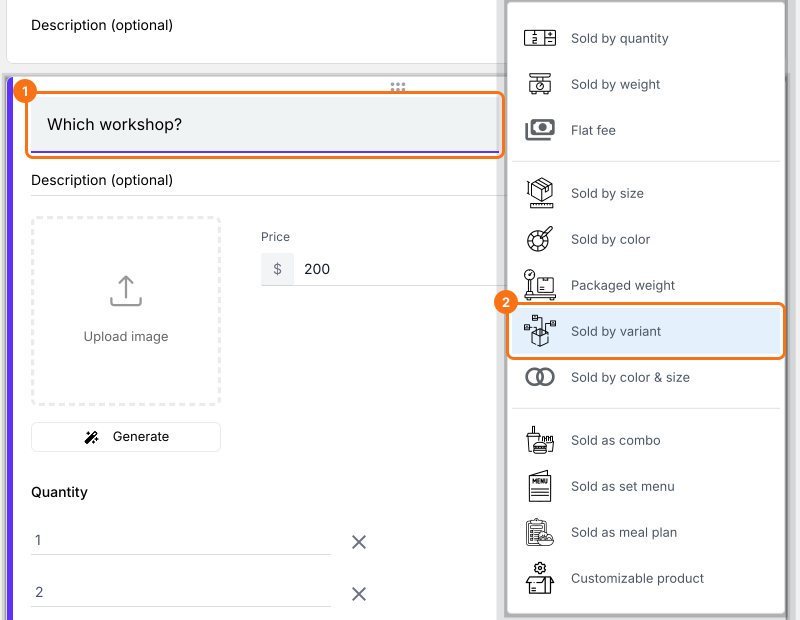
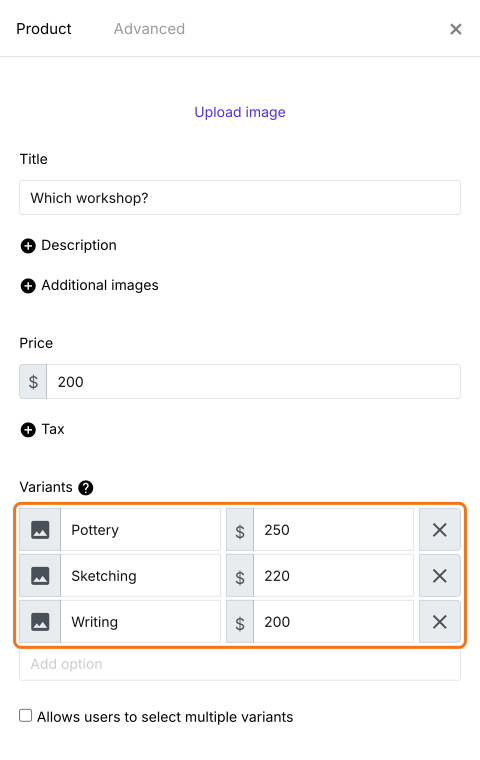
- Click Add product in the toolbar on the right. Enter your question as the title, such as Which workshop?, and select Sold by variant.
- Enter each answer as a variant, such as Pottery, Sketching and Writing.
- Click the gear icon at the bottom of the card, click Variant price, enter the price of each variant, such as $250, $220 and $200, and click Save.
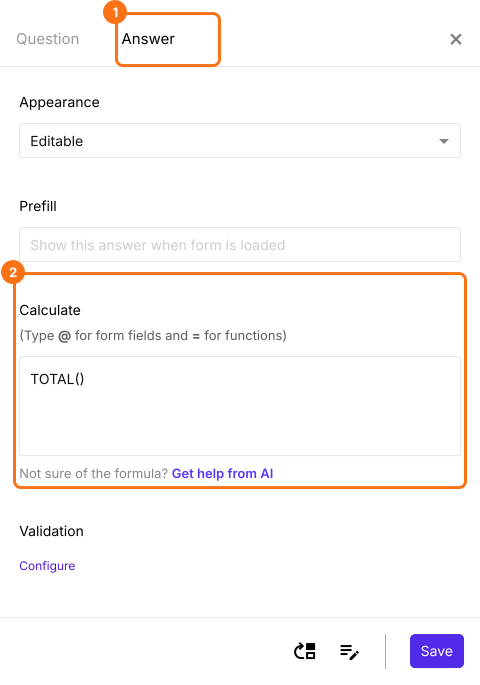
- Order Amount adds up the prices with TOTAL(), which you can see under the Advanced setting icon, Answer, in Calculate. Leave it as it is.
- Click Preview and fill in the form to try it.

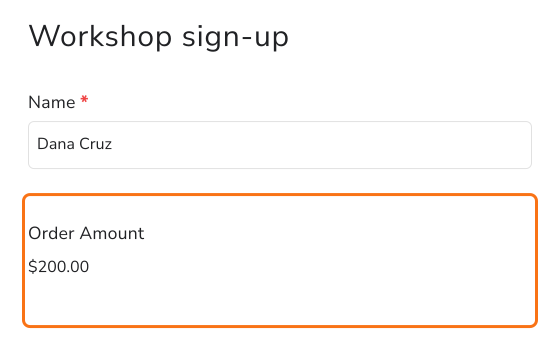
When someone selects Writing, Order Amount shows $200 before they submit, and that is the amount they pay. To check each payment, read How to see who has paid in Google Forms?
Summary
When each choice costs a different amount, Google Forms can't add up the prices, so you work out what each person owes after they submit. With Neartail, you put a price on each answer, the form shows the amount due before people submit and they pay that amount. Create your form and complete the steps above. If you have any questions, write to support.
Last updated: